Room Manager
The Room Manager plugin streamlines the management and application of interior finishes for rooms in Revit architectural projects. This comprehensive tool enables you to automatically detect existing wall, floor, and ceiling finishes, apply new finishes based on room specifications, and efficiently manage finish assignments across multiple rooms. With intelligent detection algorithms and bulk processing capabilities, the plugin significantly reduces manual work while ensuring accuracy in finish documentation and implementation.
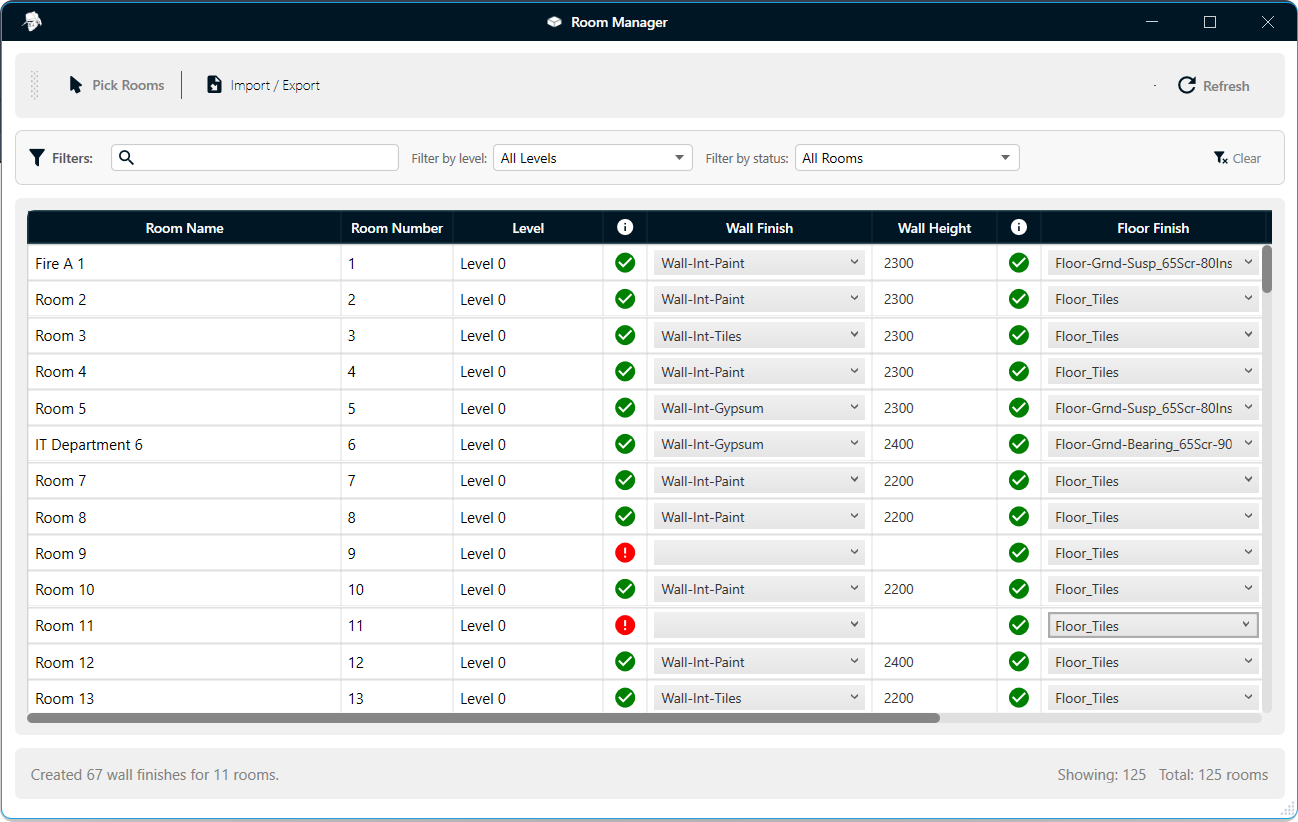
Figure 1.1: Room Manager plugin interface overview
Features:
-
Pick Rooms
- Select rooms directly from the Revit model using the "Pick Rooms" button. The plugin supports selecting rooms from both the current project and linked models. Rooms are automatically added to the management table with all their properties including room name, number, and level information.
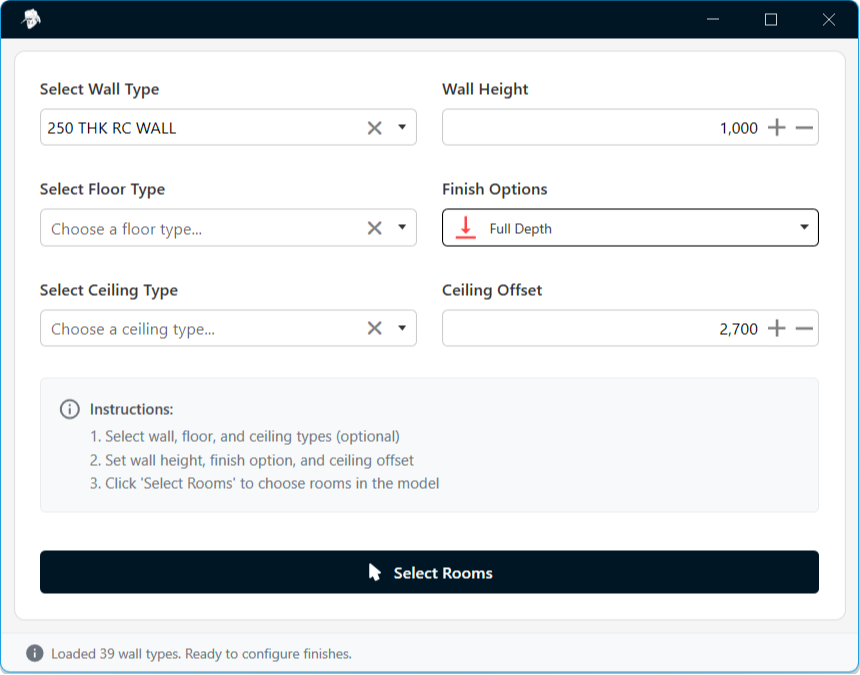
Figure 2.1: Selecting rooms from the Revit model
-
Intelligent Finish Detection
- Automatically detects existing wall, floor, and ceiling finishes for each room using advanced geometry analysis. The plugin analyzes room boundaries and matches them with surrounding finish elements, displaying status indicators (green for existing, red for missing) to quickly identify which rooms need finishes applied.
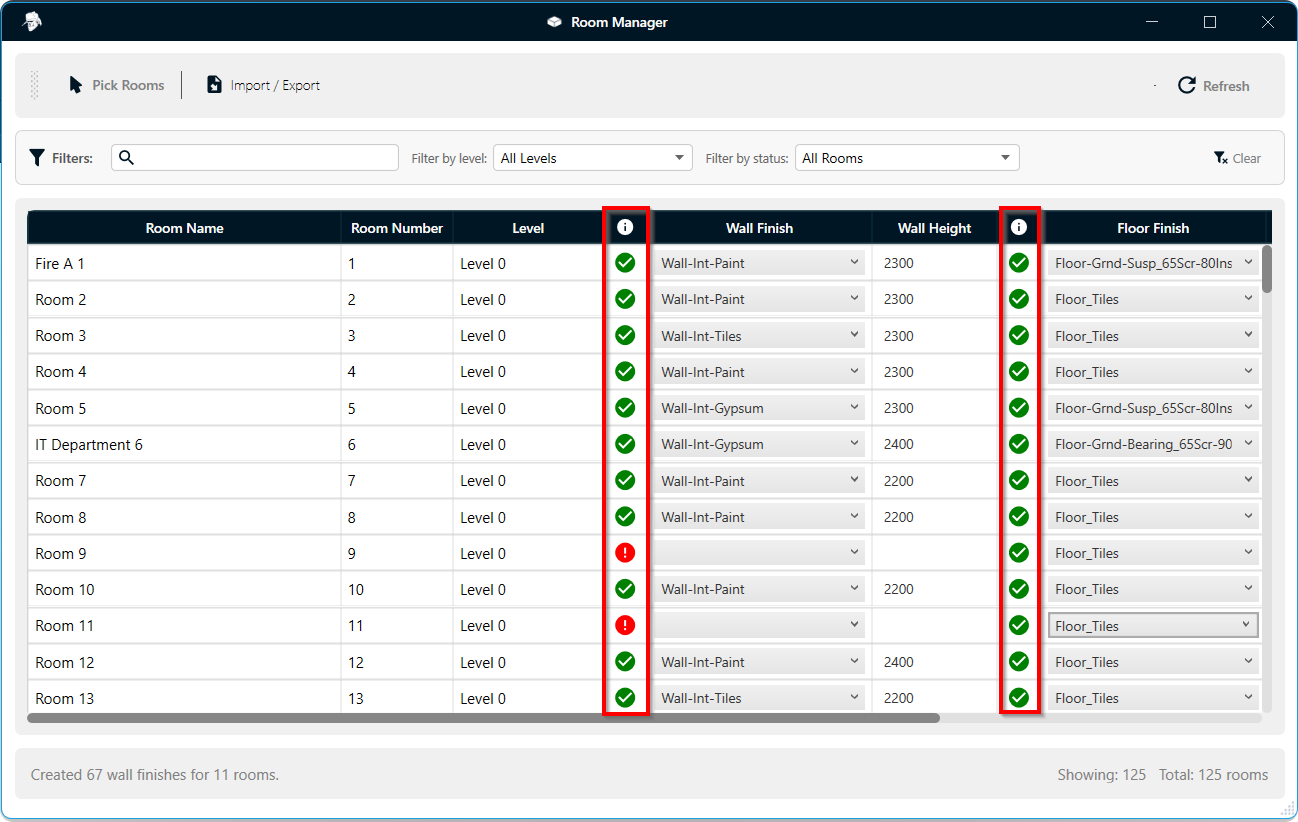
Figure 3.1: Automatic detection of existing finishes with status indicators
-
Double-Click Room Isolation (3D View)
- Quickly locate and review rooms directly from the datagrid by double-clicking on a room name.
- This feature improves navigation efficiency and allows rapid verification of room conditions without manually searching through the model.
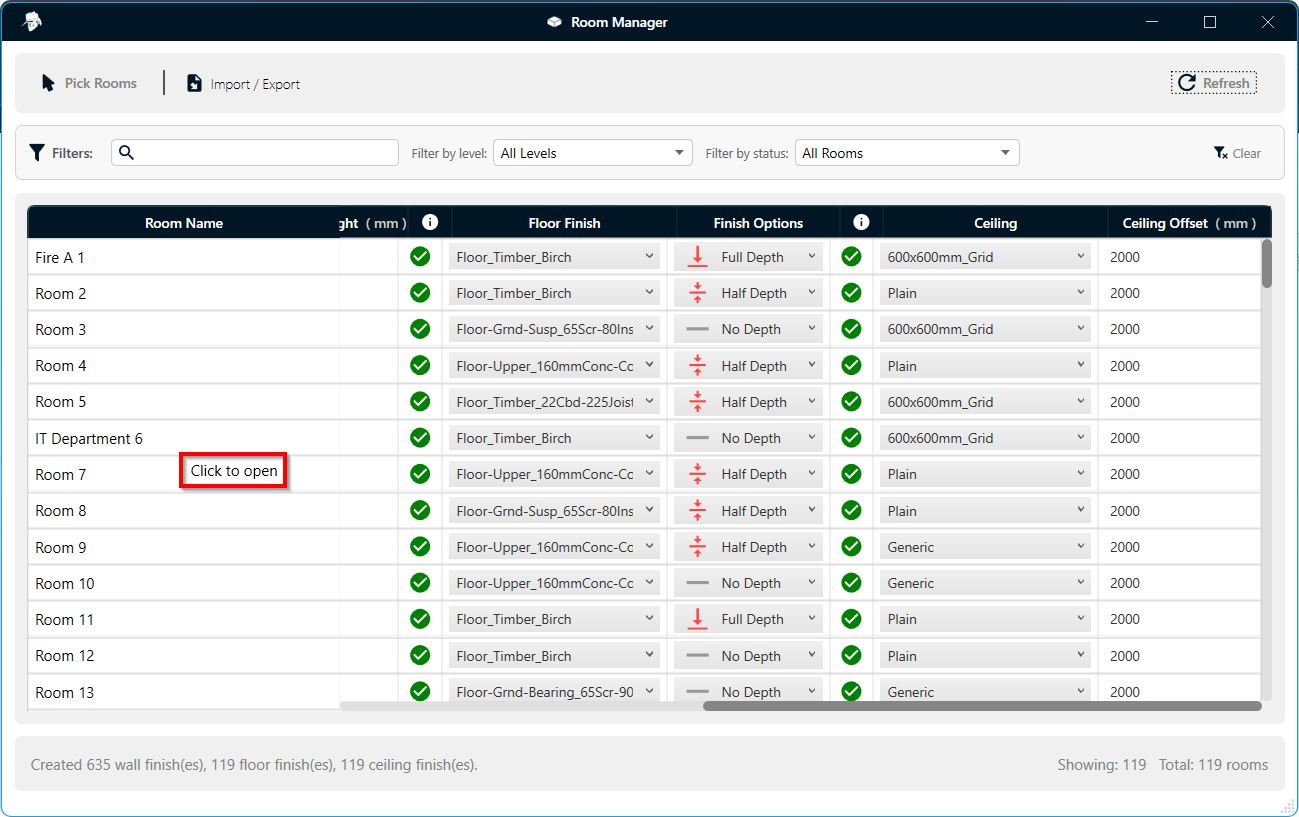
Figure 3.2: Double click on room name to isolate room in 3D
- The image below shows an isolated room where you can verify that wall, floor finish, and ceiling were created.
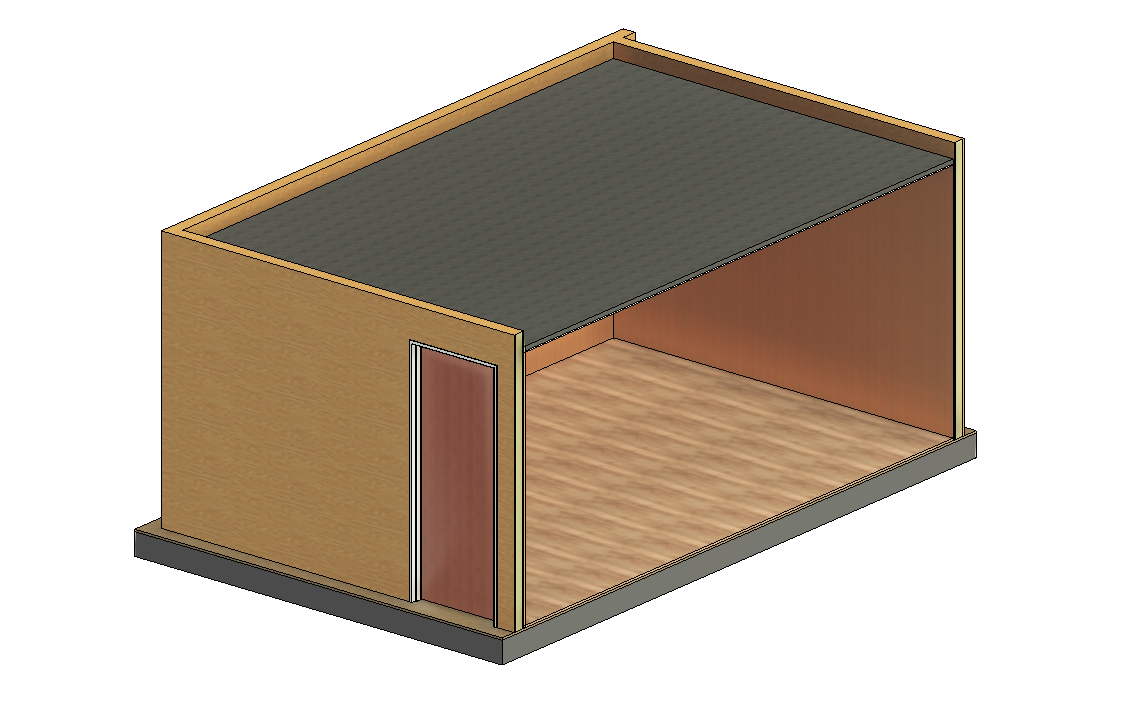
Figure 3.3: Isolated room in 3D—verify wall, floor finish, and ceiling were created
-
Advanced Filtering and Search
-
The plugin provides powerful filtering and search capabilities to help you quickly locate and manage rooms across large projects. Use the search box to find rooms by name or number, filter by level to focus on specific building floors, or filter by finish status to identify rooms that need attention. The clear filters button resets all filters for easy navigation through complex multi-level projects.
-
Search for Rooms: Use the search functionality to quickly find specific rooms by entering their name or room number. The search updates in real-time as you type, making it easy to locate rooms in large datasets.
-
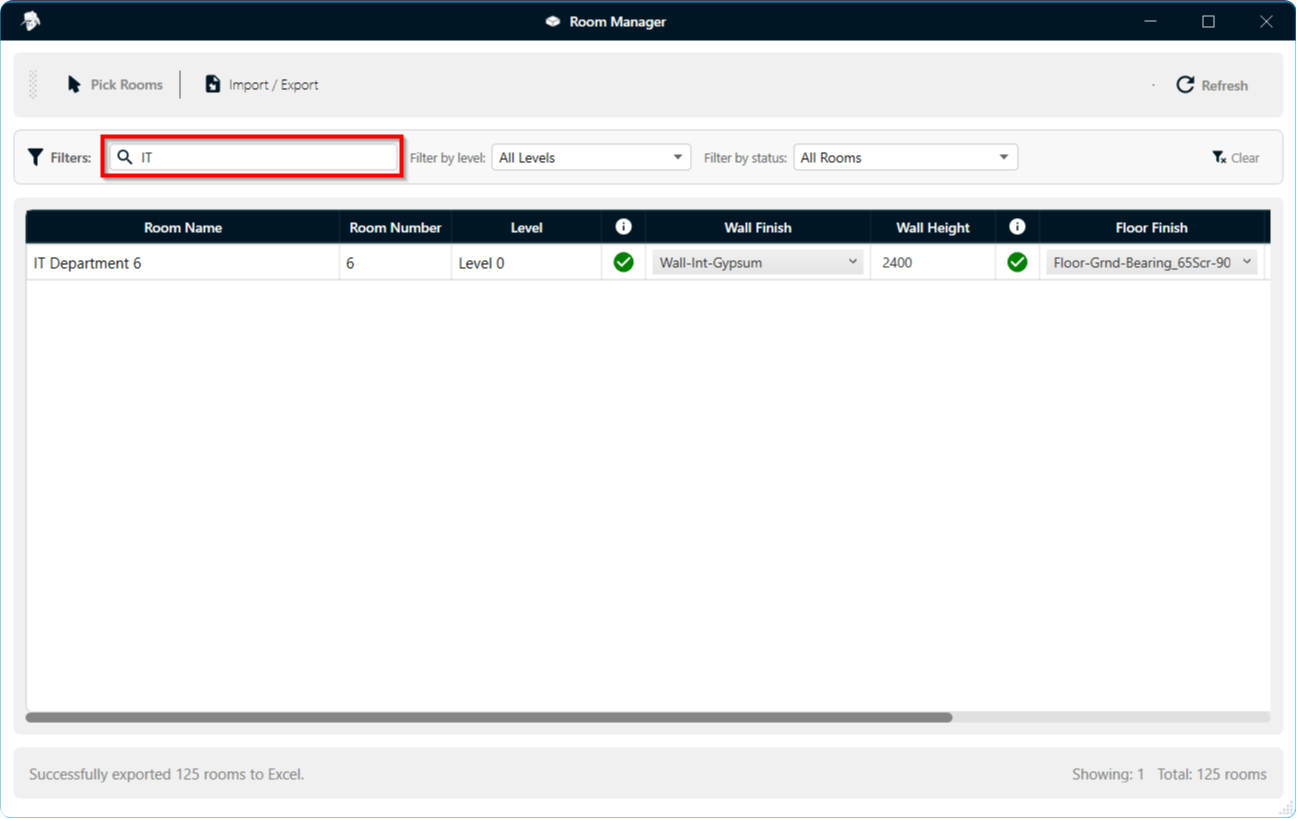
Figure 4.1: Search for rooms by name or number
- Filter by Level: Select a specific building level from the dropdown to view only rooms on that floor. This helps you focus on managing finishes for a particular level and simplifies navigation in multi-story projects.
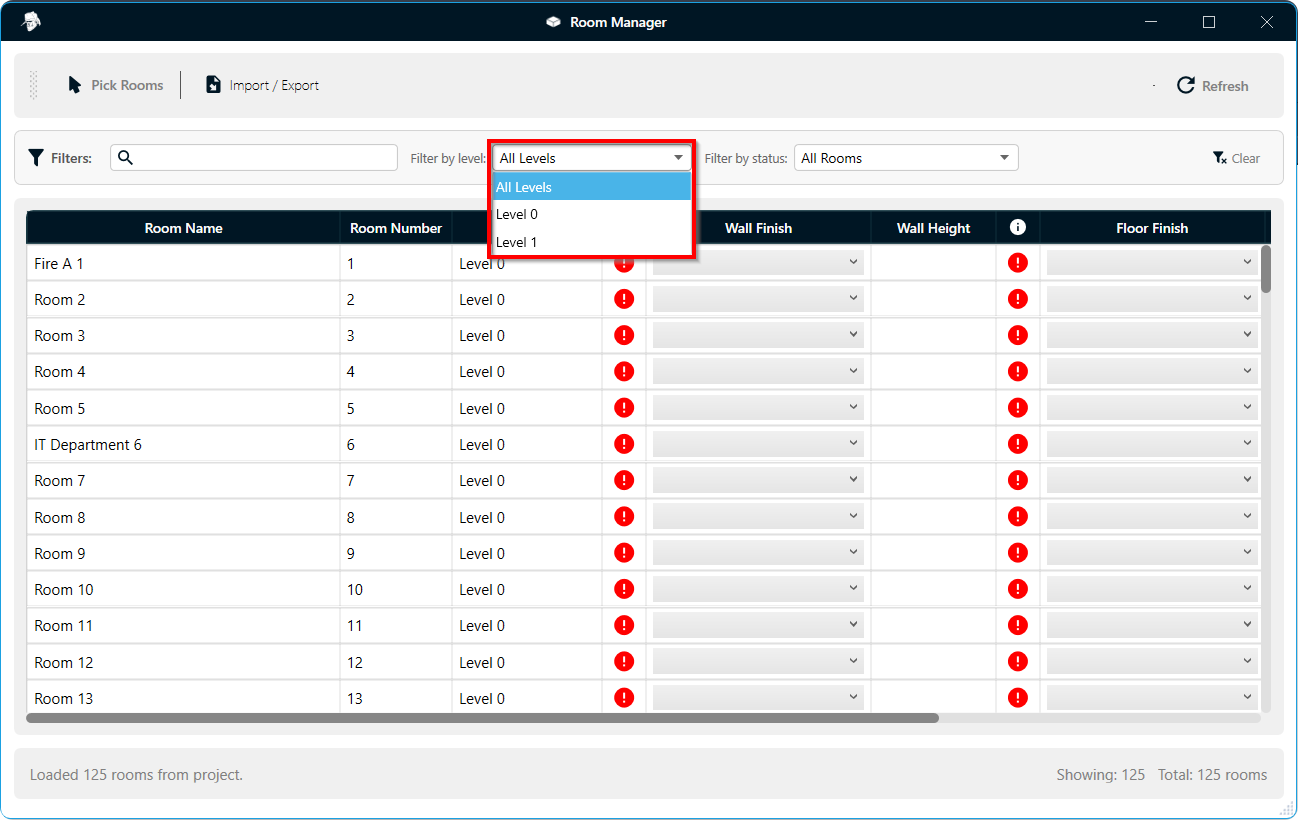
Figure 4.2: Filter rooms by building level
- Filter by Status: Filter rooms based on their finish status to quickly identify which rooms have existing finishes (green indicators) and which ones are missing finishes (red indicators). This visual filtering helps prioritize rooms that need finish assignments.
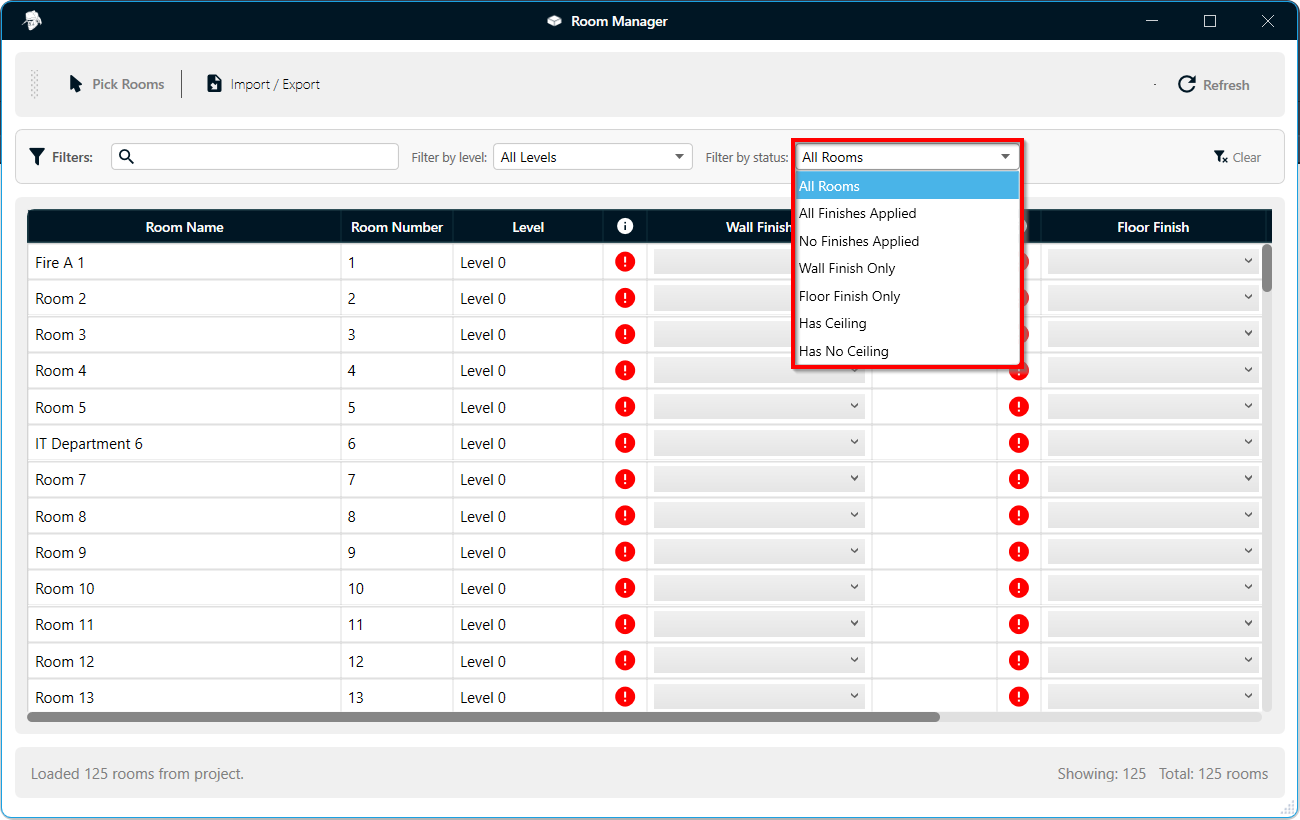
Figure 4.3: Filter rooms by finish status
-
Excel Import and Export
- Import room finish data from Excel spreadsheets to quickly populate finish assignments, or export your current room data to Excel for external editing and documentation. This feature enables seamless integration with existing project workflows and data management systems.
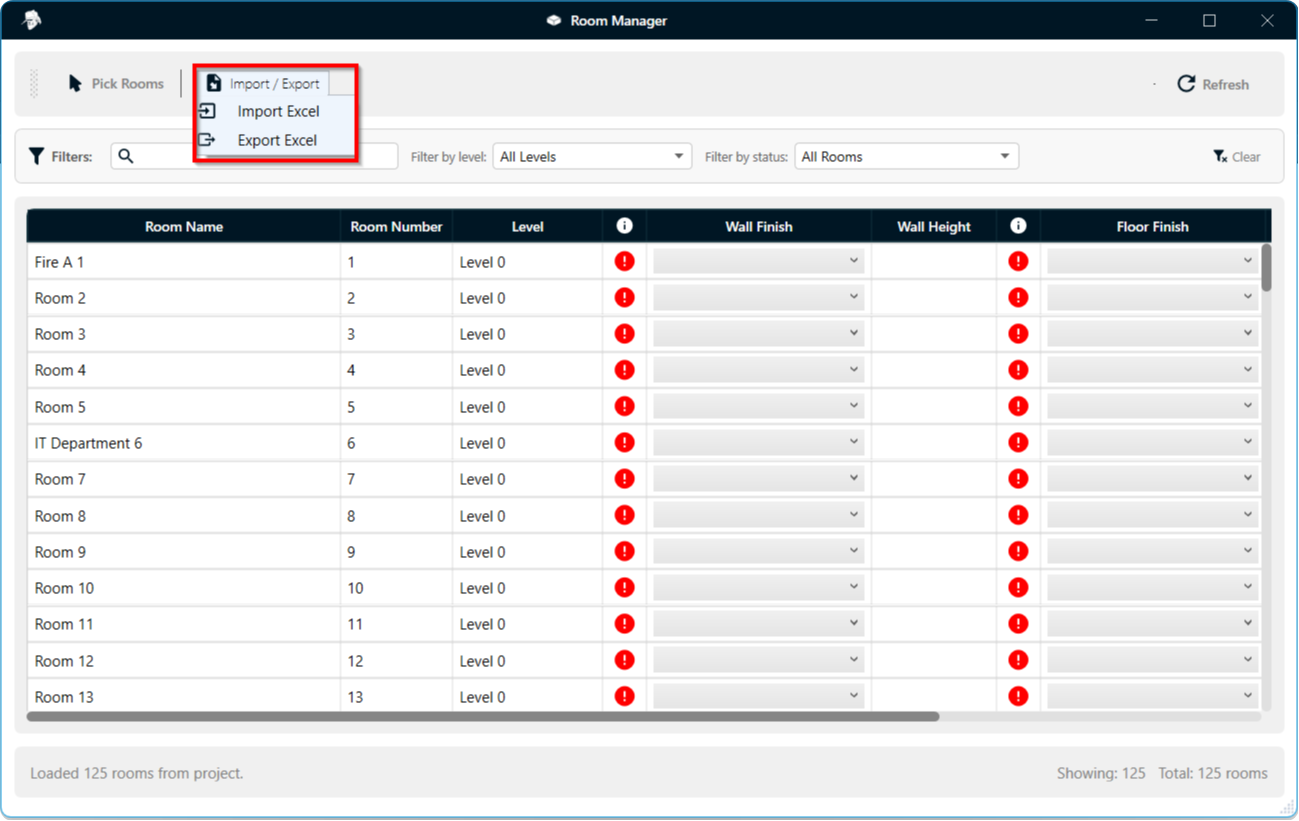
Figure 5.1: Importing and exporting room data to/from Excel
Video Demonstration
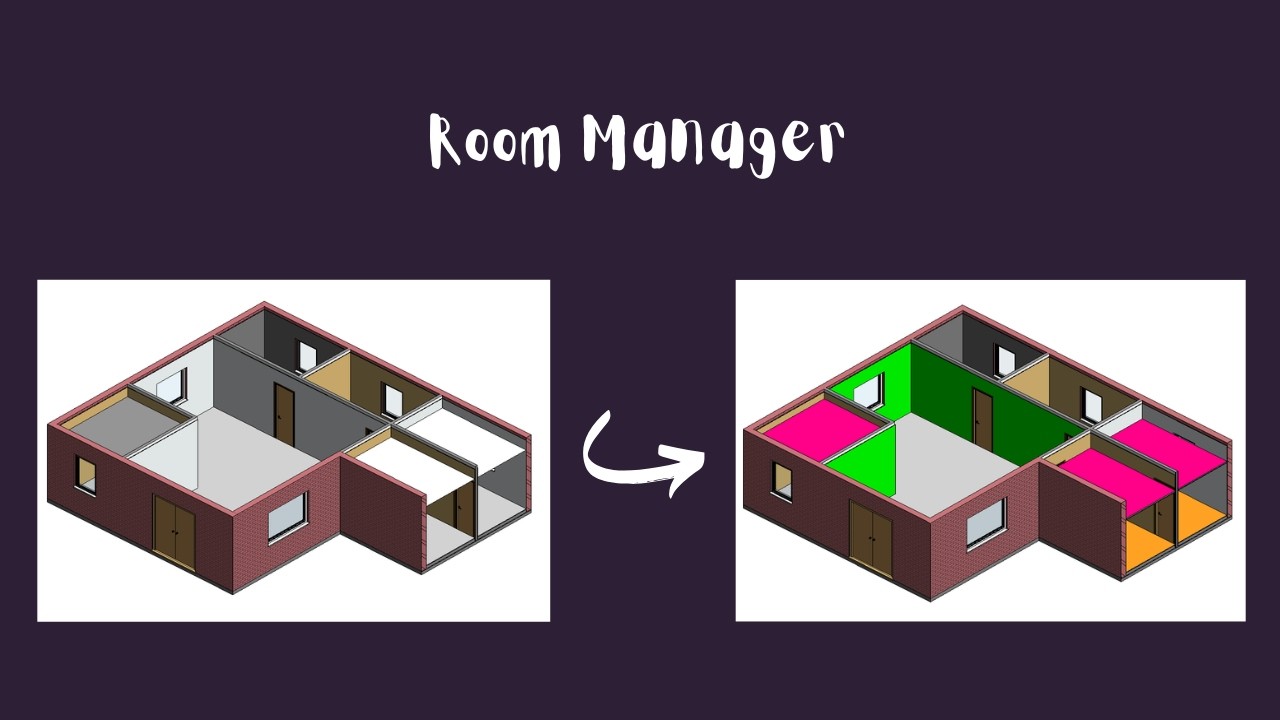
Watch the video below to see how the Room Manager plugin works:
Download Plugin
Anyone can download the plugin and use it for 30 days. After that, you need to be a YouTube member to continue using the plugins.
- v1.0.4Latest18 Nov 2026 · 29.7 MB · Adds Wall Rebar.
- v1.0.34 Nov 2026 · 29.0 MB · Adds Foundation Rebar.
- v1.0.220 Sep 2026 · 13.7 MB · First public release.